
Air Play: Cast to TV
Shadow softLibraries & Demo
2.7104.00 Reviews
- Version
- 45.0
- Installs
- 100.00K
- Age Rating
- Everyone
Screenshots
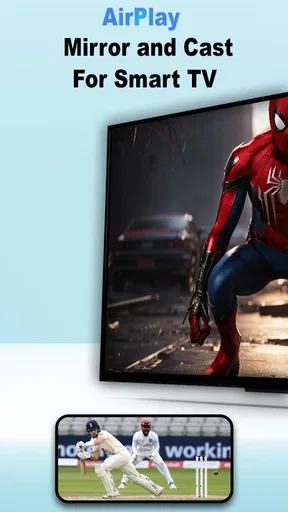
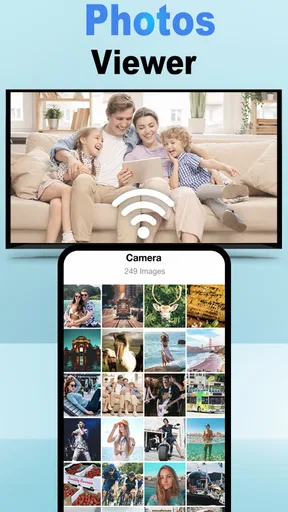
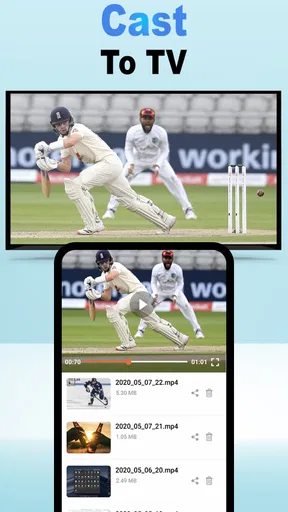
Our Review of Air Play: Cast to TV
 Analysis by Appyee
I approached Air Play: Cast to TV as a practical screen-sharing tool rather than a full media platform. Its purpose is easy to understand: move what is on a phone onto a television with as little fuss as possible. That makes it appealing for showing photos, sharing a video with people in the room, or using a larger display when a phone screen feels cramped. In my experience, the real question is not whether the idea is useful, but whether the app fits your particular phone, television, and home network.
This is a free app from Shadow soft in the Libraries & Demo section, with an Everyone content rating. It has passed the point where only a few curious users have tried it, reaching over 100 thousand installs, although its average rating sits at 2.7 from around 780 ratings. That combination tells me to keep expectations sensible: there is clear interest in the concept, but the experience may not be equally smooth for every setup.
The app is listed as Air Play, while the fuller name identifies its main job as casting to a TV. It runs on Android 7.0 and later, and the current version is 45.0. I would treat those details as a useful starting point, not a guarantee that every older phone or television will behave identically. Casting depends on more than the app itself, so compatibility and network conditions matter just as much as the download.
What using it feels like in everyday situations
The most convincing use case is a shared moment. Imagine returning from a trip with a phone full of pictures and wanting everyone in the living room to see them. Passing the phone around works, but it is awkward and limits the group to a small display. A casting app can make the television the center of attention instead. The same applies when a friend wants to show a short clip, a family member needs a clearer view of something on a phone, or you want to demonstrate an app without asking everyone to crowd around one screen.
I also see value in short, occasional sessions. If you only need to mirror something once in a while, a dedicated cable may feel excessive, while a general streaming service may not support the exact content you want to show. Air Play: Cast to TV is aimed at that middle ground: a software-based route for sharing the phone display with a compatible television.
There is an important distinction between casting and simply playing a video through a television app. Mirroring usually reflects the phone’s screen, so the phone remains part of the workflow. That can be convenient for photos, demonstrations, and content that does not have a native TV application. It can also mean that notifications, orientation changes, or other activity on the phone may become visible. I would enable a quiet or do-not-disturb mode before showing private material in front of other people.
That small preparation is one of the practical lessons here. A good casting session starts before pressing the connection button. Put the phone and TV on the same home network, wake the television, close anything sensitive, and keep the phone nearby. These steps do not make the app faster by themselves, but they remove several common sources of confusion and make it easier to tell whether a problem comes from the app, the TV, or the network.
Speed depends more on the setup than the label
The idea of “effortless” casting can create unrealistic expectations. I would not judge this app by the instant response of a local cable connection. Wireless mirroring has to discover the television, establish a connection, and keep exchanging screen information while you use the phone. A strong and reasonably quiet home network should give the app a better chance of feeling responsive than a crowded or inconsistent one.
For simple still images, a small delay is usually tolerable. When I am showing a photo album, the important thing is that the picture appears clearly enough for people across the room to see it. Video is less forgiving. Fast movement, frequent screen changes, and rapid interaction expose delays more readily than a static image. I would therefore choose this app confidently for casual sharing, but I would be more cautious about using it for anything where precise timing matters.
One useful habit is to test the connection with a low-pressure item before starting the main presentation. Open a harmless photo or a simple screen first, then check whether the television follows the phone. This gives you an early warning without interrupting the moment you actually wanted to share. It also helps separate a slow initial connection from a connection that remains unstable after it has started.
The app’s free entry point makes that test easy. You do not have to commit money before finding out whether your combination of phone and TV is suitable. At the same time, in-app purchases are listed at $14.99 per item, so I would inspect any purchase screen carefully and decide whether the basic experience already covers your needs. For occasional casting, paying for an extra option may not be worthwhile unless it solves a specific problem you have already encountered.
Heavy-use moments reveal the trade-offs
The demanding moments are not limited to long films. A busy phone screen can be challenging because it changes constantly. Scrolling through a large gallery, switching between apps, rotating the phone, or opening a detailed web page creates more visual activity than leaving one image on screen. These are the situations in which a wireless connection can feel less immediate, especially if other devices are using the same network.
I would avoid treating the app as a replacement for every form of TV playback. If your goal is to watch a long session of content that already has a polished television app, using that native TV app is usually the cleaner route. It keeps playback on the television and avoids making the phone responsible for maintaining the entire viewing experience. Air Play: Cast to TV is more interesting when the content is personal, temporary, or unavailable through the usual TV options.
Battery use is another practical consideration, even though the app’s main appeal is convenience. Keeping the screen active while sharing naturally asks more from the phone than leaving it idle. For a short family demonstration, that should be manageable on a reasonably charged device. For a long session, I would begin with plenty of battery and keep a charger within reach. The phone is not just a remote control in a mirroring workflow; it is the source of what the television displays.
Heat and resource pressure can also become more noticeable when the phone is already busy. I would close demanding background tasks before a planned casting session, especially if the device is older or has limited free resources. This is not a special trick hidden inside the app; it is a sensible way to give a wireless display tool fewer competing jobs. The result may feel more stable simply because the phone has less work to juggle.
For presentations, I would prepare a short sequence rather than improvising through several unrelated apps. Open the material first, remove distractions, and use the phone mainly for deliberate navigation. That workflow reduces unnecessary screen changes and makes the experience look more controlled. It also gives you a fallback: if the connection becomes unreliable, you can stop without losing track of what you meant to show.
Reliability is about recovery as much as connection
A casting tool earns trust when it handles ordinary interruptions gracefully. Home networks change, televisions go to sleep, and phones move between rooms. I would not assume that a single successful connection means every future session will behave the same way. The more useful test is how quickly you can recover when the TV does not appear or the session stops responding.
My preferred recovery order is simple. First, check that both devices are still connected to the same network. Next, wake the TV and make sure it is ready to receive a connection. Then return to the app and try the discovery process again rather than repeatedly tapping the same control. If that fails, closing and reopening the app is a reasonable next step. Finally, restarting the phone or television can clear a temporary connection state, although it is less convenient when people are waiting.
This process matters because wireless casting can be confusing when several devices are nearby. If a television is not listed, that does not automatically mean the app is broken. The TV may be on another network, asleep, or using a connection method that the phone cannot see. Conversely, if the television appears but the session repeatedly drops, the network or device compatibility may be the more likely source of trouble.
I would also keep the phone within a sensible range of the home router and television during important use. Moving from a strong signal area to a weak one while trying to mirror a changing screen is an avoidable risk. For a casual photo share, reconnecting is merely annoying. For a work demonstration or a family event, it can interrupt the whole flow, so a short rehearsal is worthwhile.
The rating of 2.7 is a reason to be honest about this uncertainty. It does not tell me that the app is unusable, but it does suggest that a smooth experience should not be assumed across all devices. The right way to approach it is as a compatibility-dependent utility: test it with your own television, keep an alternative ready, and avoid relying on it as the only method for an important presentation.
Device age and operating-system limits
Air Play: Cast to TV supports Android 7.0 and above, which covers a broad range of phones but still leaves out very old Android hardware. Meeting the minimum operating-system requirement does not necessarily mean the phone will feel equally capable. An older device may have a slower wireless chip, less efficient screen processing, or fewer resources available while the display is being shared.
Television compatibility deserves equal attention. The app is designed around sending a phone display to a TV, but televisions differ in their wireless discovery and receiving capabilities. Before planning a major session, I would check whether the TV can be found from the app and whether a basic screen appears correctly. A television that supports one casting standard may not behave like another model from a different manufacturer.
This is where the app compares differently with the usual alternatives. A physical HDMI adapter is generally less dependent on wireless discovery, but it adds cables, adapters, and possible connector issues. A television’s built-in casting feature may be faster to access when it already matches the phone’s ecosystem, but it may not offer the same route for every type of content. A native TV app is often best for long-form streaming, while this utility makes more sense for personal or temporary screen sharing.
There is no universal winner. I would choose Air Play: Cast to TV when I want a wireless experiment with a reasonable chance of handling photos, demonstrations, or other phone-based material. I would choose a cable when reliability is more important than convenience. I would choose the TV’s own app when I am settling in for a long viewing session. Knowing that difference prevents the app from being blamed for a job it was never the best tool to perform.
The Everyone rating also makes it approachable for household use, but age suitability does not remove the need for privacy awareness. Mirroring can expose whatever appears on the phone, including incoming messages or account details. I would not hand the phone to a child or guest without first checking what notifications and open applications might become visible on the television.
Who will get the most from it?
This app is a good candidate for people who regularly share phone content with a room full of others. Families showing pictures, students demonstrating something from a mobile device, and users who want a larger view of a phone-based activity are the clearest audience. It is also useful for someone who does not want to buy a cable before knowing whether wireless sharing will be enough.
I would be less enthusiastic for viewers who mainly watch long videos and already have access to the same services on their television. In that case, mirroring adds another device to manage and keeps the phone involved throughout playback. Competitive gamers, presenters who cannot tolerate interruptions, and anyone working with confidential notifications should also consider a more controlled alternative.
Another group that should be cautious is anyone with an older phone or a television that has unusual connectivity behavior. The Android requirement may be met while the overall setup still feels sluggish or inconsistent. Since the app is free to try, the sensible approach is to test the exact combination rather than relying on the phone’s age or the TV’s brand name.
Shadow soft has kept the product focused on the basic casting idea, and that focus is both its appeal and its limitation. I do not come to it expecting a complete media library, advanced editing tools, or a replacement for a television operating system. I come to it when the phone is the source and the TV is simply the larger screen. That narrow purpose makes the app easier to understand, provided the connection works in your environment.
My performance verdict after weighing convenience against control
Air Play: Cast to TV is best viewed as a convenient wireless bridge, not a guaranteed professional display system. Its perceived speed should be adequate for casual sharing when the network and devices cooperate, while fast-moving or extended sessions deserve more caution. Its resource demands are most noticeable when the phone is already busy or running on a low battery, and its recovery depends on basic network and device checks rather than a single magic button.
I like the low-risk starting point: the app is free, supports Android 7.0 and later, and is simple enough to test with a photo before committing to a larger task. I also appreciate that it addresses a real gap between passing a phone around and buying extra hardware. The trade-off is that wireless convenience can bring discovery problems, delay, or interruptions that a cable would avoid.
My recommendation is therefore conditional but positive. Try it if you want to share personal phone content on a compatible TV and can accept a brief setup check. Keep the phone charged, silence private notifications, test the connection early, and have a cable or built-in TV option available for important occasions. If you need guaranteed timing or uninterrupted long-form playback, choose the usual alternative instead.
For the right household, this is a useful little tool rather than an essential installation. The 100K-plus install base shows that the need is familiar, but the 2.7 average rating is a reminder to judge the experience on your own equipment. I would recommend giving it a practical trial, especially for photos and short demonstrations, while staying realistic about what wireless screen sharing can deliver.
Verdict
Strengths of Air Play: Cast to TV
- Quickly mirrors photos, videos, and music to compatible TVs.
- Supports multiple casting methods for flexible home entertainment.
- Simple interface makes basic casting easy for first-time users.
- Useful for sharing phone content with family or friends.
- Can turn a larger screen into a convenient photo-viewing display.
Limitations of Air Play: Cast to TV
- Compatibility depends on the TV, receiver, and network setup.
- Some features may require a premium upgrade or contain ads.
- Casting quality can suffer when the Wi-Fi connection is unstable.
- DRM-protected content may not mirror or play correctly.
- Mirroring can increase battery usage during extended sessions.
Other Releases by Shadow soft
View All
Endoscope Camera / USB OTG
Libraries & Demo3.5

Smart Remote: Universal TV
Libraries & Demo4.4
Similar Picks in This Category
View All
PGT: GFX, Launcher & Optimizer
Trilokia Inc.4.5

AusweisApp Bund
Governikus Service GmbH3.7

Cardboard
Google LLC3.2

Gamers GLTool with Game Tuner
Trilokia Inc.4.5

Multi Web Chat - Read Secretly
World Scan & Cleaner3.8

App Cloner Premium & Add-ons
App Listo1.9
Frequently Asked Questions
What is Air Play: Cast to TV, and what can it do?
Air Play: Cast to TV is a screen-mirroring and media-casting app designed to help you display content from an Android or iOS device on a compatible television. Depending on your TV and network setup, you can cast photos, videos, music, presentations, or your phone screen. It is especially useful for sharing personal media, watching online content on a larger display, or showing information to other people.
How do I connect Air Play: Cast to TV to my television?
To use the app, your phone and television generally need to be connected to the same Wi-Fi network. After opening Air Play: Cast to TV, allow the requested permissions, choose the TV or compatible receiver detected by the app, and select the casting or mirroring option. If the television does not appear, check that wireless casting is enabled, both devices use the same network, and no VPN or guest-network isolation is blocking discovery.
Is Air Play: Cast to TV compatible with every smart TV?
Compatibility depends on the television model, operating system, and supported casting technology. Many modern smart TVs and streaming devices support common wireless display or media-casting standards, but older models may require a separate receiver, HDMI adapter, or manufacturer-specific feature. Before downloading, check your TV’s specifications and the app’s current compatibility information, because available functions can differ between Android, iPhone, television brands, and receiver devices.
Can I mirror videos, games, and the entire phone screen without delays?
The app can be useful for mirroring supported content, but performance is strongly affected by Wi-Fi quality, device hardware, video resolution, and the television’s receiver. Photos and ordinary videos usually work more smoothly than fast games or live screen mirroring. Some streaming services may restrict mirroring because of copyright protection. Small delays, reduced image quality, or occasional disconnections can occur, particularly on crowded or weak wireless networks.
Is Air Play: Cast to TV free and is it safe to use?
Air Play: Cast to TV may offer free basic casting features while also including advertisements, optional purchases, or subscription-based tools, depending on the version and platform. Review the listing carefully before confirming any payment. For safety, install it only from the official Google Play Store or Apple App Store, examine requested permissions, and avoid entering sensitive information unless it is clearly necessary. Privacy practices and available features may change through future updates.
